

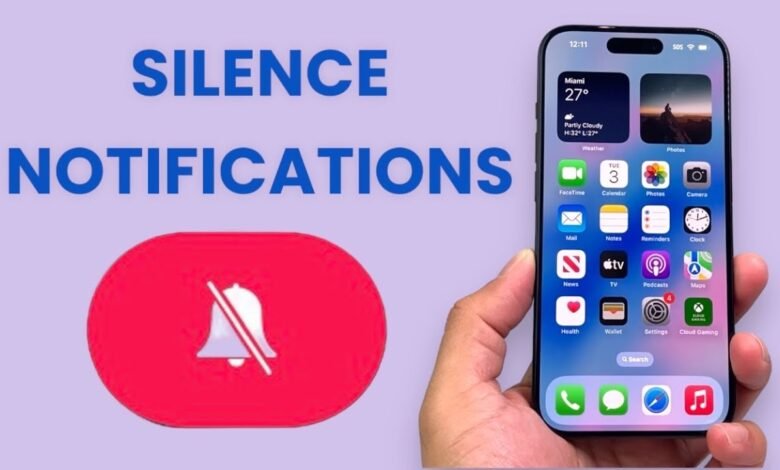
Few things feel more frustrating than sending a message or waiting for an important alert only to realize your iPhone notifications silenced themselves without warning. Whether you are missing texts, app alerts or calendar reminders, the problem is usually straightforward once you know where to look. This guide walks through the most common reasons iPhone notifications silenced appear and the practical steps that restore normal behavior.
The phrase “notifications silenced” can show up in two main ways. Sometimes your own device stops making sounds or showing banners. Other times people messaging you see a note that your notifications are silenced, which usually means a Focus mode is active on your side. Both situations have clear solutions that take only a few minutes.
Modern iOS gives users powerful tools to control interruptions. Those same tools can accidentally quiet everything if a setting gets left on or shares across devices. Understanding the difference between intentional silence and unexpected muting is the first step toward reliable alerts again.
Checking the Most Common Causes of iPhone Notifications Silenced
Start with the simplest possibility. On older iPhones the physical Ring/Silent switch on the left side can flip into the silent position. When the orange indicator shows, the phone stays quiet for calls and most alerts. On newer models that replaced the switch with an Action Button, holding that button can activate Silent Mode. A quick press of the volume buttons usually reveals whether the ringer volume sits at zero.
Focus modes cause many cases of iPhone notifications silenced. Do Not Disturb, Sleep, Work, Personal or any custom Focus can block alerts while still allowing selected people or apps through. When Share Across Devices is enabled, turning on a Focus on a Mac or iPad can silence the iPhone as well. The status often appears to others in Messages as a small note that notifications are silenced.
Individual app settings offer another frequent explanation. Opening Settings and scrolling to Notifications lets you inspect every app. If Allow Notifications is off, or Sounds is disabled, that specific app stays quiet even when the rest of the phone works normally. Messages, WhatsApp, Mail and social apps are the usual suspects.
Contact-level silencing also happens. In a conversation inside Messages, tapping the contact name at the top and enabling Hide Alerts mutes that thread. The same option exists for some third-party messaging apps. A single muted conversation can create the impression that broader notifications have failed.
Turning Off Focus Modes to Restore Alerts
Focus remains the leading reason people encounter iPhone notifications silenced status. Opening Control Center by swiping down from the top-right corner shows the current Focus status. Tapping the Focus tile and choosing to turn it off immediately restores normal notifications in most cases.
For more control, open Settings and select Focus. Each available mode can be examined and disabled. Inside a specific Focus you can also adjust Allowed People and Allowed Apps so important contacts still break through when the mode is active. Turning off Share Across Devices prevents a Focus on one Apple device from silencing others linked to the same Apple ID.
Focus Status itself can be limited. Inside any Focus, the option to share Focus Status controls whether other people see that your notifications are silenced. Disabling it removes the public note without changing how your own alerts behave. Many users prefer this privacy adjustment once they understand the feature.
Adjusting Notification and Sound Settings
When Focus is not the culprit, the next place to look is the main Notifications list. Inside Settings, select Notifications and review each important app. Confirm that Allow Notifications is enabled and that Sounds, Banners and Lock Screen options match your preference. Changing Banner Style to Persistent keeps quiet alerts visible longer so they are harder to miss.
Sounds & Haptics sits nearby in Settings. The Ringtone and Alerts slider should sit high enough to be audible. Enabling Change with Buttons lets the side volume keys control alert volume directly. Some users also turn on haptic feedback in both Ring and Silent modes so a vibration still arrives even when the phone stays quiet.
Scheduled Summary can gather less urgent notifications into timed batches. If that feature is active, individual alerts may feel silenced during the day and only appear together later. Turning the summary off or adjusting its schedule often restores the expected flow of alerts.
Handling Contact and Conversation Silencing
A single muted conversation creates the impression that iPhone notifications silenced across the board. In Messages, open the chat, tap the contact or group name at the top, and look for Hide Alerts. Switching that option off brings the thread back to normal. The same principle applies inside many third-party apps that offer per-conversation mute controls.
If an entire contact seems quiet, check whether that person was added to a Focus allow list or whether their contact card has any special alert settings. Removing temporary mutes and confirming the contact appears in Allowed People for any active Focus usually resolves the issue quickly.
When a Restart or Software Check Is Needed
Software glitches occasionally leave notifications in a silenced state even after settings look correct. A simple restart clears many temporary problems. On Face ID models, press and hold the side button together with either volume button until the power slider appears, then slide to power off. Wait half a minute and turn the device back on.
Keeping iOS current also helps. Apple regularly refines Focus behavior and notification delivery. Checking Settings, General, Software Update ensures the latest fixes are installed. After an update it can take a short time for all notification channels to settle, so a second check of Focus and app permissions after restarting is worthwhile.
Low Power Mode sometimes reduces background activity and can make certain alerts feel delayed. Turning it off temporarily tests whether power-saving settings contribute to the problem. Screen Time Downtime schedules can likewise quiet the phone during set hours. Reviewing those limits prevents unexpected silence.
Preventing Future iPhone Notifications Silenced Surprises
Once alerts work again, a few habits keep them reliable. Review Focus schedules so they activate only when intended. Limit Share Across Devices if multiple Apple products are in regular use. Periodically open the Notifications list and confirm that key apps still have permission to alert you.
Creating a custom Focus for deep work or sleep, with carefully chosen exceptions, often works better than relying solely on the default Do Not Disturb. Allowing family members, close colleagues or critical apps through reduces the chance of missing something important while still protecting concentration.
Many people also benefit from placing frequently used apps in a consistent location on the Home Screen and checking Notification Center with a downward swipe from the top of the display. Visual confirmation that alerts are arriving, even if temporarily silent, builds confidence that the system is functioning.
Conclusion
iPhone notifications silenced problems almost always trace back to Focus modes, the Silent switch or Action Button, individual app permissions, muted conversations or shared settings across devices. Checking these areas in order restores normal alerts for the large majority of users. A quick restart and software update handle the remaining cases. With a clearer understanding of how iOS manages interruptions, it becomes much easier to keep important messages and reminders arriving exactly when they should. Taking a few minutes to review Focus and notification settings today prevents most future surprises with iPhone notifications silenced.
Frequently Asked Questions
Why do people see “notifications silenced” when they message me?
This message appears when a Focus mode is active on your iPhone and Focus Status sharing is turned on. It does not mean you blocked the person. Turning off the Focus or disabling Focus Status sharing removes the note.
How do I quickly stop iPhone notifications silenced behavior?
Open Control Center, tap the Focus tile, and turn off any active mode. Also check that the Ring/Silent switch or Action Button is not set to silent and that alert volume is raised.
Can Focus on my Mac silence my iPhone?
Yes, if Share Across Devices is enabled under Settings > Focus. Turning that option off keeps Focus settings separate on each device.
Why are only some apps silent while others still alert me?
Each app has its own notification permission. Open Settings > Notifications, select the quiet app, and confirm Allow Notifications and Sounds are both enabled.
Does restarting the iPhone fix silenced notifications?
Often yes. A restart clears temporary glitches that can leave the notification system in an unexpected state even when settings look correct.
Read More:
ATT My Results: Complete Guide to the Employee Performance and HR Dashboard