
How to Unlock iPhone: A Complete Guide to Passcodes, Carrier Locks, and Activation Lock

Introduction:
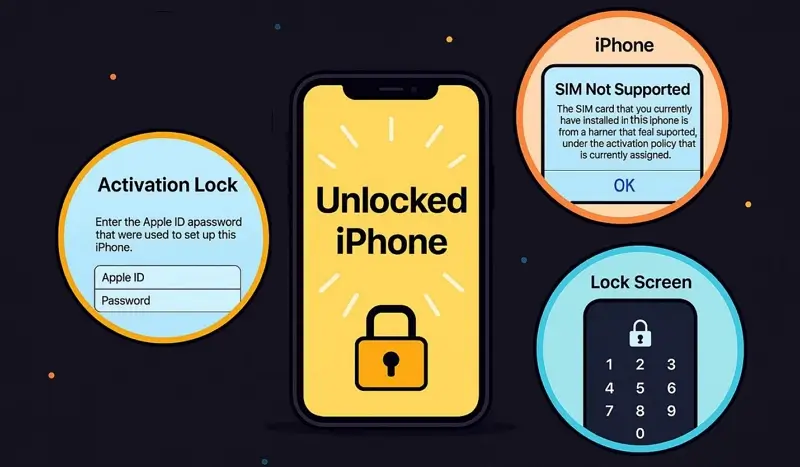
When someone searches for how to unlock iPhone, they may be dealing with very different problems. An iPhone can be locked because you forgot the screen passcode, because the device is restricted to a particular mobile carrier, or because Activation Lock is associated with another Apple Account. These situations can look similar at first, but the correct solution is different for each one.
The good news is that legitimate iPhone locks can usually be dealt with through Apple’s built-in recovery options, your Apple Account, or your network provider. The important part is identifying the type of lock before trying anything. Random unlocking software, unofficial services, or repeated passcode attempts can create additional problems and may put personal information at risk.
This guide explains how to unlock iPhone safely, including what to do when you know the passcode, what happens when you’ve forgotten it, how to deal with a carrier-locked device, and what Activation Lock means. It also explains what happens to your data when a locked iPhone has to be reset.
Profile Summary
| Detail | Information |
|---|---|
| Main Issue | iPhone can be locked by a passcode, carrier restriction, or Activation Lock |
| Forgotten Passcode | Use Apple’s supported reset/recovery process |
| Face ID | Can unlock compatible iPhones when properly configured |
| Touch ID | Available on supported iPhone models |
| Carrier Lock | Check Settings → General → About → Carrier Lock |
| Unlocked Status | “No SIM restrictions” indicates the iPhone is carrier unlocked |
| Activation Lock | Requires the associated Apple Account or legitimate ownership process |
| Reset Consequence | Erasing the device removes its stored data and settings |
| Data Recovery | A previous iCloud or computer backup may allow restoration |
| Used iPhone | Make sure the previous owner’s Activation Lock is removed |
| Third-Party Unlock Tools | Avoid services promising unauthorized passcode or Activation Lock bypasses |
| Safest Approach | Identify the type of lock and use Apple’s official recovery method |
1. Understanding What Kind of iPhone Lock You Have
Before attempting to unlock an iPhone, identify exactly what is preventing access. The most common situation is a locked screen. On an iPhone with Face ID, you normally wake the device and authenticate with Face ID or enter the passcode. On supported models with a Home button, Touch ID may provide biometric authentication, with the passcode serving as the underlying security credential. Apple’s current user guide describes these as the standard methods for unlocking the device.
A forgotten passcode is different from a carrier lock. If the phone accepts your passcode but refuses to work with another SIM or eSIM, the problem may be a network-provider restriction rather than a security lock. Apple says you can check this under Settings > General > About, where an unlocked iPhone shows “No SIM restrictions” next to the carrier-lock field.
There is also Activation Lock. This security feature is connected with Find My and the Apple Account associated with the device. A phone displaying an Activation Lock screen is not simply waiting for a forgotten screen passcode. The Apple Account credentials associated with the device, or an appropriate ownership process, are required to remove that protection.
Recognizing the difference saves time. If you repeatedly attempt solutions designed for the wrong type of lock, you may end up resetting a device unnecessarily or contacting the wrong organization for assistance.
Why Identification Matters
Think of the three situations as separate doors. The passcode lock protects access to the contents of the iPhone. The carrier lock controls whether the phone can be used with another mobile network. Activation Lock protects the device against unauthorized reuse if it has been associated with Find My.
The solution follows the type of door you’re facing. A forgotten passcode may require resetting the iPhone. A carrier restriction must be handled by the network provider. Activation Lock generally requires the Apple Account connected to the device or, in appropriate circumstances, Apple’s support process with proof of purchase.
2. How to Unlock iPhone When You Know the Passcode
If you know the correct passcode, unlocking an iPhone is straightforward. On a modern iPhone with Face ID, wake the screen and authenticate using Face ID or swipe up and enter the passcode when prompted. If the phone has a Home button, pressing the Home button and authenticating with Touch ID may unlock it when Touch ID is configured. Apple’s instructions also explain that the passcode remains an important part of the device’s security system.
There are circumstances in which an iPhone will require the passcode even if Face ID or Touch ID normally works. For example, after certain security-related events or a restart, biometric authentication may not be sufficient and the passcode becomes necessary. This is normal behavior rather than evidence that something is wrong with the phone.
If the screen is unresponsive, however, the problem may not actually be an unlocking problem. A frozen display, software issue, or battery problem can make a functioning iPhone appear inaccessible. In such cases, restarting the device may resolve the issue before you consider more drastic measures.
It’s also wise to avoid guessing repeatedly. Apple’s security design deliberately limits repeated incorrect passcode attempts. Depending on the device and its configuration, continued failures can eventually produce a Security Lockout or Device Unavailable screen.
Face ID, Touch ID, and Passcodes
Biometric authentication is designed to make everyday unlocking convenient, but the passcode remains fundamental to iPhone security. Face ID and Touch ID are not replacements for having a valid passcode configured on the device.
If Face ID suddenly fails, you can normally fall back to the passcode. Similarly, if Touch ID isn’t recognizing your fingerprint, entering the passcode is the appropriate alternative. Cleaning the relevant sensor area, ensuring your face or finger is positioned properly, and checking that the device isn’t asking specifically for the passcode can also help.
The key point is simple: if you know the passcode, you generally don’t need an external unlocking service. The safest route is to use the authentication methods already built into the iPhone.
3. How to Unlock iPhone If You Forgot the Passcode
Forgetting an iPhone passcode is one of the most frustrating situations because Apple’s security system is intentionally designed to prevent someone from bypassing the lock and reading the device’s contents. There isn’t a legitimate universal trick that reveals a forgotten passcode without authentication.
If the iPhone displays Security Lockout or Device Unavailable, newer versions of iOS can provide an on-device option for resetting the device. Apple’s current instructions say that on supported versions, you may see a Forgot Passcode? option after sufficient failed attempts. The process requires conditions such as an active internet connection, Find My having previously been enabled, and access to the Apple Account credentials associated with the device.
The important consequence is that resetting the iPhone removes the data and settings stored on the device. This is not a secret method for discovering the old passcode. Instead, it is a security-focused recovery process that allows the legitimate owner to erase and set up the phone again.
Whether your information can be restored afterward depends on your backups. If you previously used iCloud Backup or regularly backed up the iPhone to a computer, you may be able to restore your information during setup. Without a backup, information that existed only on the locked device may not be recoverable.
Using Recovery Mode When Necessary
If the on-device recovery option isn’t available, Apple provides a computer-based recovery method. Recovery mode allows a compatible Mac or Windows PC to communicate with the iPhone so it can be restored.
The exact button sequence varies according to the iPhone model, so users should follow the instructions specific to their device rather than trying random combinations. Once the phone is successfully placed into recovery mode, it can be restored using Apple’s supported computer software.
Restoring an iPhone in this situation is a legitimate ownership-recovery procedure, but it does not defeat Activation Lock. If Find My was enabled, the Apple Account associated with the phone may still be required after the reset.
That distinction is crucial. A reset can remove the forgotten screen passcode, but it isn’t a method for taking ownership of a device that belongs to someone else.
4. How to Unlock iPhone From a Carrier Lock
A carrier-locked iPhone is a completely different situation. The device itself may work perfectly, but it can be restricted to the network provider that originally supplied it. This becomes noticeable when you insert a SIM card from another provider or attempt to activate another cellular plan.
To check the status, open Settings, choose General, then About, and look for the carrier-lock information. Apple says an unlocked device displays “No SIM restrictions.” If a carrier is listed instead, the iPhone may be restricted to that provider.
Apple also makes an important point: Apple itself does not unlock an iPhone for another network provider. The current carrier must handle that process. The provider may have eligibility requirements, such as the device being paid off or the account meeting its conditions. Exact requirements depend on the carrier and applicable local rules.
This is particularly relevant when buying a used iPhone. A seller may advertise a phone as “unlocked,” but it’s worth checking the Carrier Lock field directly on the device before completing a purchase.
Physical SIM and eSIM Considerations
Modern iPhones may use physical SIM cards, eSIM, or combinations depending on the model and market. A carrier restriction can affect cellular activation regardless of whether you’re using a physical SIM or an eSIM.
If you have already confirmed that the phone is unlocked but receive an “Invalid SIM” or “No SIM” message, the issue may instead involve your cellular plan, SIM, carrier settings, or network activation. Apple recommends checking that you have an active plan and, where appropriate, checking for a carrier settings update.
For travelers, this distinction is especially useful. If you want to use a local eSIM abroad, the iPhone needs to be unlocked from its original carrier. Apple notes that an iPhone intended for use with another carrier cannot be carrier-locked.
5. How to Deal With Activation Lock Safely
Activation Lock is one of the strongest protections built into the iPhone ecosystem. It is designed to prevent someone who obtains a lost or stolen iPhone from simply erasing it and using it as their own.
If the iPhone belongs to you and you see an Activation Lock screen, Apple says you should follow the onscreen instructions and enter the Apple Account and password previously used to set up the device. If you’ve forgotten the account details, Apple’s account-recovery options can help you regain access.
For a second-hand iPhone, Activation Lock deserves special attention. If the previous owner has not properly removed the device from their account, you may not be able to complete setup. The appropriate solution is for the previous owner to remove the device from their Apple Account, rather than attempting to circumvent the protection.
Apple also provides a support route for certain Activation Lock situations when the legitimate owner has proof of purchase documentation.
What If You Bought a Used iPhone?
Buying a used iPhone requires more than checking whether the screen turns on. Before paying, the device should be erased properly and ready for the new owner to complete setup. You should also check the carrier-lock status and make sure the previous owner’s account is no longer associated with the device.
If a seller tells you that you can “remove the Activation Lock later” without providing a legitimate ownership process, treat that as a warning sign. Activation Lock exists specifically to prevent unauthorized reuse.
A trustworthy seller should be able to demonstrate that the device has been removed from their account and is ready for a new owner. If that cannot be done, walking away from the purchase is often safer than trying to find a third-party unlocking service.
Avoiding Fake iPhone Unlocking Services and Risky Shortcuts
Searches for how to unlock iPhone can lead to websites and applications promising instant passcode removal, permanent Activation Lock bypasses, or remote unlocking for almost any device. Such promises deserve skepticism.
A forgotten passcode is protected by Apple’s security architecture. A legitimate service cannot simply provide a universal master code that reveals the contents of an iPhone. Similarly, a carrier lock is controlled by the carrier, not by a random website claiming it can unlock every phone.
Be particularly cautious if a service asks for your Apple Account password, verification codes, or other credentials. Never hand over security codes simply because someone claims they need them to unlock a phone.
There is also a privacy issue. Your iPhone may contain photographs, messages, financial information, contacts, documents, authentication codes, and other sensitive material. Giving an unknown third party remote access to the device or account can create risks that are far greater than the original locking problem.
The safest approach is boring but effective: identify the lock, use Apple’s official recovery process for passcode problems, contact the carrier for network restrictions, and work through legitimate ownership procedures for Activation Lock.
Conclusion
Learning how to unlock iPhone begins with understanding that “unlock” can mean several different things. A forgotten screen passcode, a carrier restriction, and Activation Lock are separate security mechanisms, and each requires its own legitimate solution.
If you know your passcode, the normal Face ID, Touch ID, or passcode authentication process should provide access. If you’ve forgotten the passcode, Apple’s supported reset and recovery options can restore access, but erasing the device may be necessary. On supported versions of iOS, an on-device reset option may appear when the device enters Security Lockout or becomes unavailable.
For carrier restrictions, check the Carrier Lock field in Settings and contact the current network provider if the phone isn’t unlocked. Apple specifically states that the carrier—not Apple—is responsible for unlocking an iPhone for another network.
Activation Lock requires even more care because it is designed to protect ownership. The Apple Account associated with the device, or an appropriate Apple support process with proof of purchase, is the legitimate route.
Ultimately, there is no need to gamble with questionable unlocking tools. The safest solution is to determine exactly what has locked the iPhone and use the official recovery or authorization method designed for that particular situation.
Frequently Asked Questions
1. How do I unlock my iPhone if I know the passcode?
Wake the iPhone and authenticate with Face ID, Touch ID, or your passcode, depending on your model and configuration. If biometric authentication isn’t available, entering the correct passcode should unlock the device.
2. Can I unlock an iPhone if I forgot the passcode?
Yes, but you generally cannot recover the forgotten passcode itself. On supported iOS versions, Apple provides reset options that can erase the iPhone and allow you to set it up again. You may need your Apple Account credentials and an internet connection.
3. Will resetting my iPhone remove the forgotten passcode?
Resetting the iPhone removes the existing device data and settings, allowing you to configure a new passcode during setup. It does not mean the old passcode can be revealed.
4. Can I unlock an iPhone without losing my data?
If you simply know the passcode or can authenticate normally, your data remains intact. If you’ve completely forgotten the passcode and need to erase the device, restoring from a previous backup may be the way to recover your information.
5. How can I tell if my iPhone is carrier unlocked?
Go to Settings > General > About and check the carrier-lock section. If the device is unlocked, Apple says it should show “No SIM restrictions.”
6. Can Apple unlock my iPhone for another carrier?
No. Apple states that only your current network provider can unlock an iPhone for use with another carrier.
7. What is Activation Lock on an iPhone?
Activation Lock is a security feature associated with Find My and the Apple Account connected to an iPhone. It helps prevent someone else from activating and using a device that has been lost or stolen.
8. Can I remove Activation Lock from a used iPhone?
The previous owner should remove the device from their Apple Account. If you are the legitimate owner and have appropriate proof of purchase, Apple may provide an Activation Lock support process in eligible circumstances.
9. Why does my iPhone say “Device Unavailable”?
This message can appear after too many incorrect passcode attempts. Depending on the iOS version and device configuration, you may eventually receive an option to reset the device.
10. Are online iPhone unlocking services safe?
You should be very cautious with services claiming they can bypass an iPhone passcode or Activation Lock instantly. Legitimate recovery depends on the type of lock and your ownership credentials. Avoid giving unknown services your Apple Account password, verification codes, or private information.
You May Read Also: